An existing file
Choose File → Open… or press ⌘O. You can also select a file in Finder and choose Open With → markdown. Each document has its own window.
A LOCAL EDITOR FOR YOUR MAC
Headings, lists, links and code, without working around the punctuation. Write visually, then save an ordinary Markdown file.
Version 1.0.0 · Universal (Apple Silicon + Intel) · 0.70 MB ZIP
Not notarized. This preview is ad-hoc signed; Gatekeeper rejects it as a trusted public release. A Developer ID–signed, notarized build is not yet available. Do not disable your Mac’s security protections.
9d1a80782367ad4ecf22c0f85f0f30c7ffe85c5d01253f4b1661ef78a02c2957markdown is a desktop app. This website is its guide; it does not open, edit or upload your documents.
Download the preview ZIP above and double-click it in Finder to extract markdown.app. Move the app to your Mac’s Applications folder. If an older copy is running, quit it first. Keep your documents; they are separate files.
Find markdown in Applications or Spotlight. Choose File → New or press ⌘N for a fresh document.
Type into the page. Press ⌘S, choose a folder and name, and save with a .md or .markdown extension.
This package contains Apple Silicon (arm64) and Intel (x86_64) code, built for macOS 13 or later. Launching and editing have been tested on Apple Silicon only. Intel and macOS 13 runtime compatibility have not been tested. The preview is not notarized; if macOS blocks it, wait for a Developer ID–signed release.
Choose File → Open… or press ⌘O. You can also select a file in Finder and choose Open With → markdown. Each document has its own window.
Save writes changes to the current file. Save As… lets you choose a new name or location; the active document then uses that file. Use ⇧⌘S for Save As.
Saving is explicit: press ⌘S as you work. When you close a changed document or quit, macOS offers Save, Don’t Save and Cancel. Cancel keeps the document open; Don’t Save discards edits since the last save.
Use File → Revert to Saved… when you want to return to the saved version. Keep a separate copy before discarding work you may need later.
The app opens in WYSIWYG mode: “what you see is what you get.” Select text to format it, or put your cursor in a paragraph to change its structure.
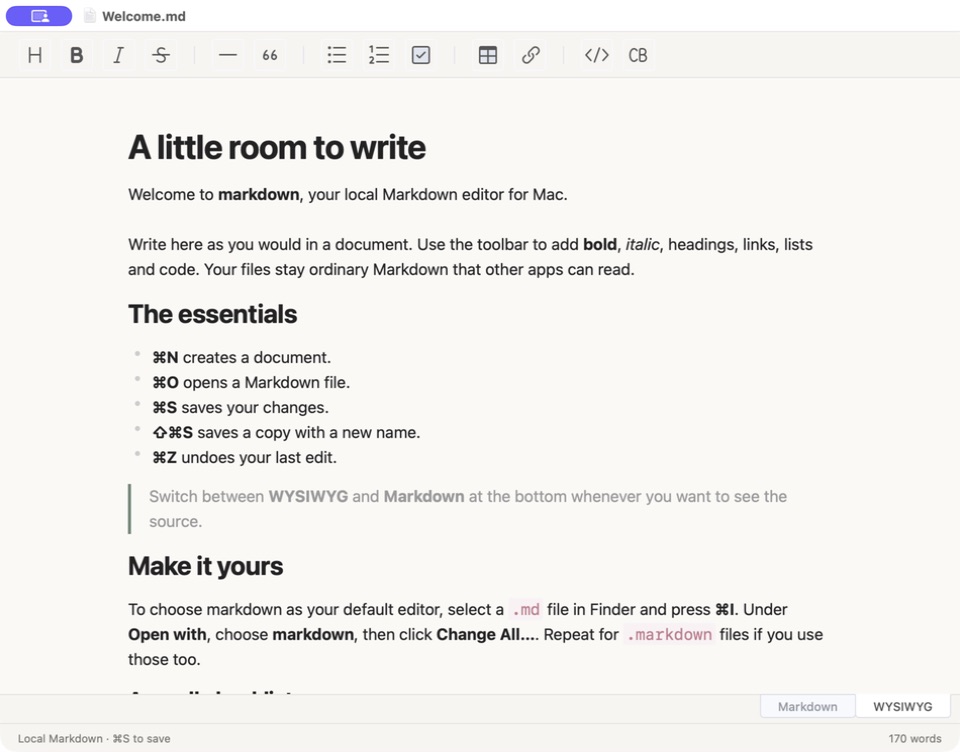
Use the Headings toolbar button to choose a heading level. Use headings to organize sections of your document.
Select words, then choose Bold, Italic or Strike. Bold and italic also have keyboard shortcuts.
Choose Unordered list, Ordered list or Task. Lists can contain nested items, and tasks include checkboxes.
Choose Insert link to add link text and a destination. Use Blockquote for quoted paragraphs.
Use Inline code for a short expression. Choose Insert codeBlock for multiple lines and, optionally, a language label.
Use Insert table for rows and columns, or Line to separate sections with a horizontal rule.
A small plan for a quiet morning.
## Weekend notes

A **small plan** for a *quiet morning*.

- Make coffee
- Write a pageChoose Markdown at the bottom of the editor to work with source text and its preview. Choose WYSIWYG to return to visual editing.
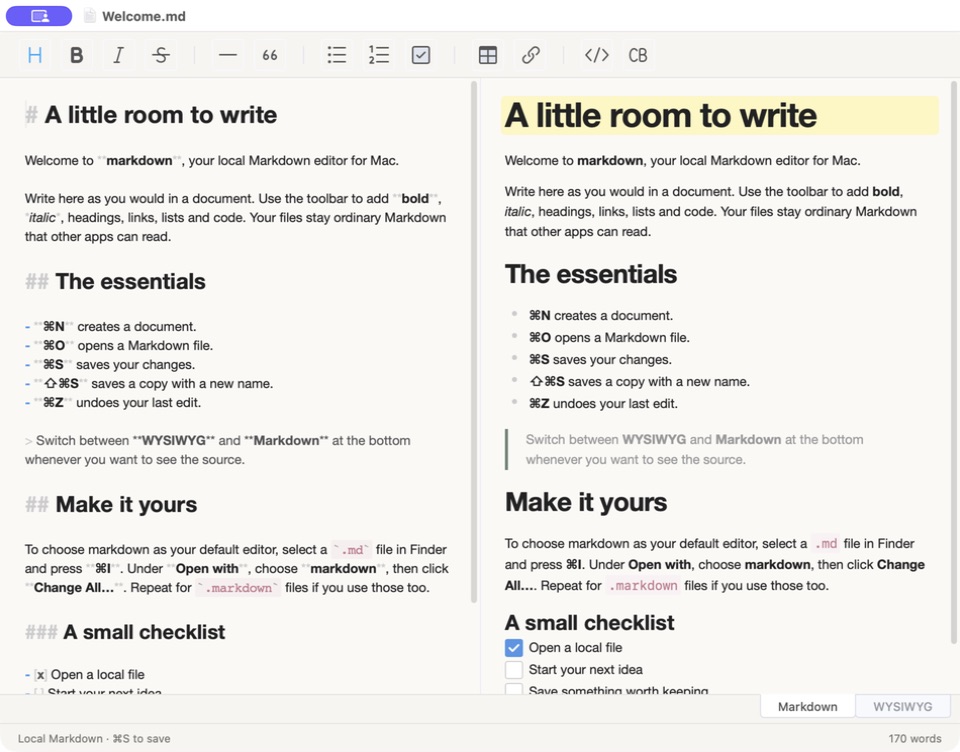
Switching modes alone does not mark the document as changed. Opening and saving an untouched file preserves its original bytes. After visual edits, the editor may normalize spacing and Markdown punctuation—for example, using * instead of - for bullet lists.
Raw HTML, YAML front matter and custom Markdown extensions are not guaranteed to survive visual editing unchanged. Use the source view and review the saved result. Keep a backup before editing documents that depend on a particular dialect.
⌘ is Command. ⇧ is Shift.
Set this once, and a double-click in Finder will open your Markdown files in markdown.
.md file in Finder..markdown file if you use that extension.This changes the application used to open those files. It does not rewrite the files themselves. You can return to the same Finder setting to choose another editor.
Text editing needs no account, server or internet connection. The app has no cloud sync, and editor telemetry is disabled. Remote images referenced by a document may load from their original URLs.
Files must be UTF-8 text. Common formatting is supported, but visual editing can normalize Markdown. Relative-image rendering and custom extensions are not guaranteed.
The app uses explicit saves. Unsaved-change prompts protect ordinary close and quit actions; they are not a substitute for saving or keeping backups.
There is no PDF export or app-wide text search. The universal package targets macOS 13 or later. Apple Silicon is the tested architecture; Intel code is included but has not been run on an Intel Mac.
Created by Charles Majola and released under the MIT License. You may use, copy, modify and distribute the app; retain the copyright and license notice. Get the source on GitHub. Included third-party software keeps its own licenses, including TOAST UI Editor’s MIT license. Read all third-party notices; these are also inside the app bundle.
Use Finder’s Get Info instructions above and select Change All…. Choosing Open With for one file does not necessarily change the default for other files. Check both filename extensions you use.
Confirm that markdown.app is in Applications and launch it once. In Finder, choose Open With → Other… and select the app directly.
The app expects UTF-8 Markdown. Convert a copy to UTF-8 in an editor that supports the original encoding, then open that copy in markdown.
Visual editors convert between formatted content and Markdown. Equivalent delimiters or list indentation may change. For syntax-sensitive documents, use source mode, keep a backup and review the result.
Choose Help → markdown Help in the Mac menu bar for a short reminder of editing, saving and default-editor settings.